Monday, November 30, 2015

Flipped Lesson

  1. Standard: 5.4.1) Determine the economic and cultural impact of European exploration during the Age of Discovery upon European society and American Indians.
  • Identifying significant early European patrons, explorers, and their countries or origin, including early settlements in the New World. 
  1. Lesson Goals: Students will identify reasons for Columbus's explorations and identify how his travel affected their lives back then as well as our lives today.
  2. Concept to be taught: The reasons for Christopher Columbus's travels and how it effects our life today.

Students we will be learning about Christopher Columbus this week. Above is a video with important facts about this European Explorer. Watch it and take notes about what you think is important in the video. I want you to write a small report on what you learned from the video and from the website below. You will present what you learned to the class tomorrow so that we can learn all the great information you did. Your report must be two paragraphs (3 to 5 sentences in each paragraph). When writing your report I want you to include: 3 facts you already knew about Christopher Columbus, 5 facts that you learned, and 2 questions you still have after all of your research. You need to also include how you think his voyage affected our lives today.


If this link doesn't work for you then  you may scan the QR using a device with the APP Qrafter.
You may handwrite your report on notebook paper but it must be legible handwriting and written in pencil. I cannot wait for all of you to teach us all that you have learned! Please come to me if you do not have internet access and I will print off of the article for you and arrange for you to see the video another time. I am so excited about tomorrow!

Tuesday, November 10, 2015

Coding and Robotics

Coding and Robotics

Coding is something that most people do not understand, are unfamiliar with, or are scared of. I was all of these things until recently. So many elementary schools do absolutely NOTHING with coding and robotics and now that I am well informed on what these are I find that so sad. Coding is simply telling a computer what you want it to by typing in step by step commands. There are so many unfilled jobs in the united states in the computer science field. Students are not taught coding and robotics in elementary mostly because it is expensive and just pushed to the side. The reason we need to teach this is because of several reasons. First, when working with robotics students get a hands on experience with assembling things. When they work with robotics they are using their math, science,and technology skills. Second, your students will LOVE working with robotics and coding too once they get the hang of it. Third, every single child can learn to code at a very young age and that opens up so many job opportunities for them as a young adult. 

There are so many different types of robots that can be purchased for schools. Here are a few of them and how they work.
  1. Edison- 
    • This robot is Lego compatible 
    • easy to use ( great for early robotics)
    • It cost 50$ per individual robot but the more you order the more discount you get.
    • Here is a video to tell a little bit more about what this robot can do for you in your classroom....


2. mBot-  
    • This robot cost 80$ per robot without shipping
    • A little more difficult to use than the Edison
    • For elementary students but definitely a challenge.
    • This robot comes unassembled but with all of the parts. The students assemble the robot then download the software into the computer. Once they have done that they begin the process of coding to make the robot move.

3. Ozobot- 
    • tiny robot that is GREAT for beginning coding.
    • This robot cost 60$ but sometimes they run deals where you can get 2 for 90$
    • Your students would LOVE this and how easy it is to use
    • This robot uses colors and patterns drawn by the student on paper or on digital devices to move around. 


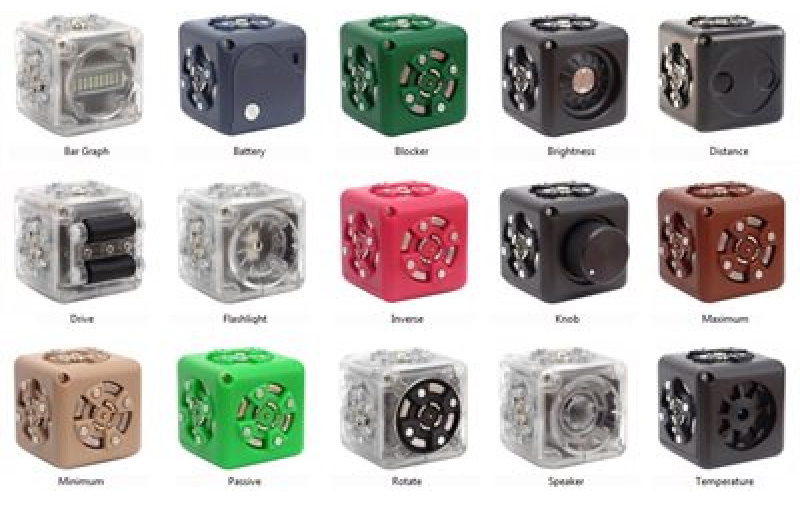
4. Cublets- 
  • These tiny robots are just as the name descrcribes them. They are cube shaped robots.
    • ["Created by Modular RoboticsCubelets are like your standard building blocks except they aren’t because each block is a robot. Essentially, it’s a simple way to create a functional robot using a combination of different blocks. The kits will come between six and 20 blocks and each block falls into one of three categories: Think, Action, or Sense. Think blocks are the robots programmed to serve as ones giving a directive to the corresponding blocks – they have math or logic functions that enable this; Action blocks, well, perform actions; and Sense blocks are capable of responding to different sights, sounds, or touches. Cubelets are powerful kids educational robots that will enable kids to think logically while they’re building."] -Tech.co.com
    • Cost about 160$ for the kit of six cubes

The Osmo is one of my favorite robots that can be used at home or in the classroom. Osmo's are not outrageous priced, about 70$, and they run really great specials for them all the time. You can use this gadget by connecting it to your ipad over the camera. Once it is connected you use the app on the ipad to either draw, play a game, or make patterns. Along with your Osmo you get 26 red and 26 blue letters, and a set of shapes. You use the letters to play the game which is guessing words and you use the pattern blocks to make the shapes. The ipad will show what you need to do on the screen and then you place either letters or shapes in the counter and the Osmo will identify and register what you are putting down. This is something you can use as a station in your classroom for creating words in the younger and older grades. Second, you can use this for math. Students can use the shapes for geometry lessons. Third, you can use the drawing app for science. You can draw a diagram of something and then use apple tv to display and present your master piece. There are so many different ways you can use this app! You will just have to buy it and see for yourself.


Some of the coding apps that I love this most are:
  1. Kodable app- this is a beginners coding app. It is free. This app doesn't require any knowledge before you start it because the lesson gives step by step directions. Only needs to be done about 20 hours a week to become skilled. Very child friendly. You students/ children would love this.
  2. Daisy the dinosaur- this app is also great for beginners. Instead of typing in code this is  more of a drag and drop type of coding. This would be best for your pre-k through 2nd grades. This app has no cost as well.
  3. Move the turtle- Great for younger and older elementary students. This app cost 3.99$. A little more challenging than Daisy the Dinosaur. You ca alter this coding app to fit the child using it. 
  4. Scratch junior- This is a website that is free. Here is a little more about it... [programming language that enables young children (ages 5-7) to create their own interactive stories and games. Children snap together graphical programming blocks to make characters move, jump, dance, and sing. Children can modify characters in the paint editor, add their own voices and sounds, even insert photos of themselves -- then use the programming blocks to make their characters come to life.]- scratchjr.com
  5. Cato's Hike-This is a little bit more expensive than the other apps its 4.99$. I personally believe it is worth it though. This app is for older children, Starting in 3rd grade and reaching all the way up to seniors in high school. This just shows how simple or complex this app can be. 
  6.  
I hope you try some of these fabulous apps! It is in our hands to shape the children for jobs in the future. Coding is definitely a job that needs employees and you do not have to be a genius to have these jobs! 

Monday, October 26, 2015

QR codes and a Flipped Classroom

QR Codes

QR CODES ARE EVERYWHERE!!!!
  1. Why use QR Codes?
    • They connect the physical world to the digital world
    • The Eliminate the frustration of long web assess
    • protect children from viewing images on the website that are inappropriate 
    • Todays learners are mobile learners
    • activate student engagement
    • differentiate through different centers in the classroom
    • they give instant feed back to your students
    • they implement technology in the classroom
  2. How do you make a QR code?
    1. go to qrstuff.com
    2. choose what type of URL you want to type into the URL box- this can either be for a website/ document or for a YouTube video. The two buttons are at the top of the page for you to choose between.
    3. Then you copy and paste your URL into the appropriate box.
    4. Then choose a color if you wish
    5. save/ print out your QR code.
  3. What types of apps/ activities should I use QR codes for?
  4. Educreation is an awesome app you can use and have your students turn their work into a URL then to a QR code.

5. qr voice.net is another great app to use to make it into a qr code. this is where your students can scan the code and then have directions read to them. GREAT FOR ELL. 
6. More great ways to use QR codes are:
  • learning centers
  • parent night
  • weekly info sheets sent home to parents
  • self checking for any assignment that students need feed back on
  • virtual word wall
  • book talks
  • classroom library
  • colored QR codes based on reading ability
  • interactive study guides
  • questions of the day- to get your students started at the beginning of their day.
  • in a text book- to further instruction and help


The Flipped Classroom

A flipped classroom is where the students already learn/ know the content before coming to class or meeting with the teacher. They watch videos of the lesson either at home (out- of -class flip) or watch the video in the classroom (in-class flip). If the teacher decides to do the in class flip then they just watch the video and learn before math that day.

1) Why use this method?
- because this gives the students who struggle more time re- watching the video and more one on one time with the teacher and the students who get it the first time can move on. This is great for differentiating  instruction. 

Monday, October 19, 2015

Social Stories

Social Stories

A Social story describes a situation, skill, or concept in terms of relevant social cues, perspectives, and common responses in a specifically defined style and format. The goal of a social story is to share accurate social information in a patient and reassuring manner that is easily understood by its audience. Basically this is where student can make rules, routines, or anything that needs to be addressed into a personal story for them to review when needed. For example you could make a social story written by the student about when the teacher has a substitute. This reinforced good behavior when the teacher is not present and the students with behavior problems or autism know what to do when the school day is a little off track. 

Why use Social stories?

  • Reinforces correct behavior
  • information is presented in a story format
  • provides a visual example
  • it is a personalized behavior intervention
  • works well with students on the autism spectrum and those with ADD/ADHD
******* This may also be used when students lack social skills

APPS that are good to use when making a Social Story

Little Bird Tails

- This app is free 
-user friendly

Kid in Story
-$6.99

My Story
- $2.99
- You can design your own photos then record your voice with it

Videolicious
- This app is free
- trustworthy
-user friendly

Imovie
-This app is free
- More edits are available
-little more difficult to operate than the others

Friday, October 16, 2015

STEM Challenge

I am doing my practicum this semester in fifth grade. I absolutely love this grade and had the privilege of doing a STEM challenge with my students. For those of you that are not aware, STEM is an integration of Science, Technology, Engineering, and Mathematics. Students get hands on experience about a certain topic and how it relates to the real world. For my STEM challenge I based it off buoyancy. I had my students build boats using: popsicle sticks, aluminum foil, straws, clay, sponges, and a plastic bag. The boat had to be able to float and hold at least 2-3 marbles. Here is a digital story I had some of my students make about their adventure. 

Standard: 5.5 Comstruct explanations from observations to determine how the density of an object affects whether the object sinks or floats when placed in liquid.

Monday, October 5, 2015

Digital Storytelling

Digital Storytelling


Digital Storytelling is something that can be used in all grades (starting as early as pre-K) for several different purposes using multiple apps. Digital storytelling is not only fun and engaging but also helps with students with disabilities, and students who are shy and not big on talking out in class. It can help develop critical thinking and creativity along becoming proficient with multimedia. Students LOVE digital storytelling. Some of the applications you can do digital storytelling with are down below.

1) My Story-This app cost 2.99$ but is very easy to work with and student friendly for the younger grades. - You create and share Ebooks by adding drawings, photos, and stickers.- You then record your voice to tell the story. 


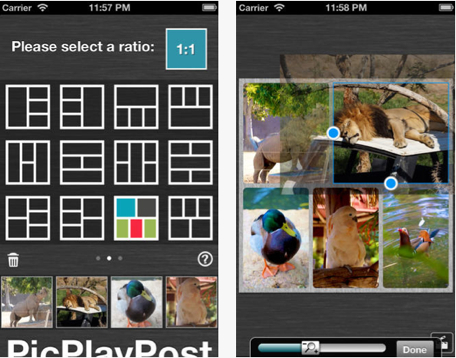
2) Pic Collage

- Free- where you can upload photos into a collage and save it to your camera roll so that you can place it as a back ground in another app. This is called app smashing.

3) Tellagami
- Free app
-Up load a back ground
- Pick a character and animate that character
- record what you want your character to talk about


4) Screen Chomp
- Free
- With this app you can write, while talking, on to the picture that you uploaded onto it.


5) Felt Board

-2.99$